
Help Center
How can we help?
Short guides with real screenshots. Pick a topic, or ask the Help Assistant.
Step-by-step guides
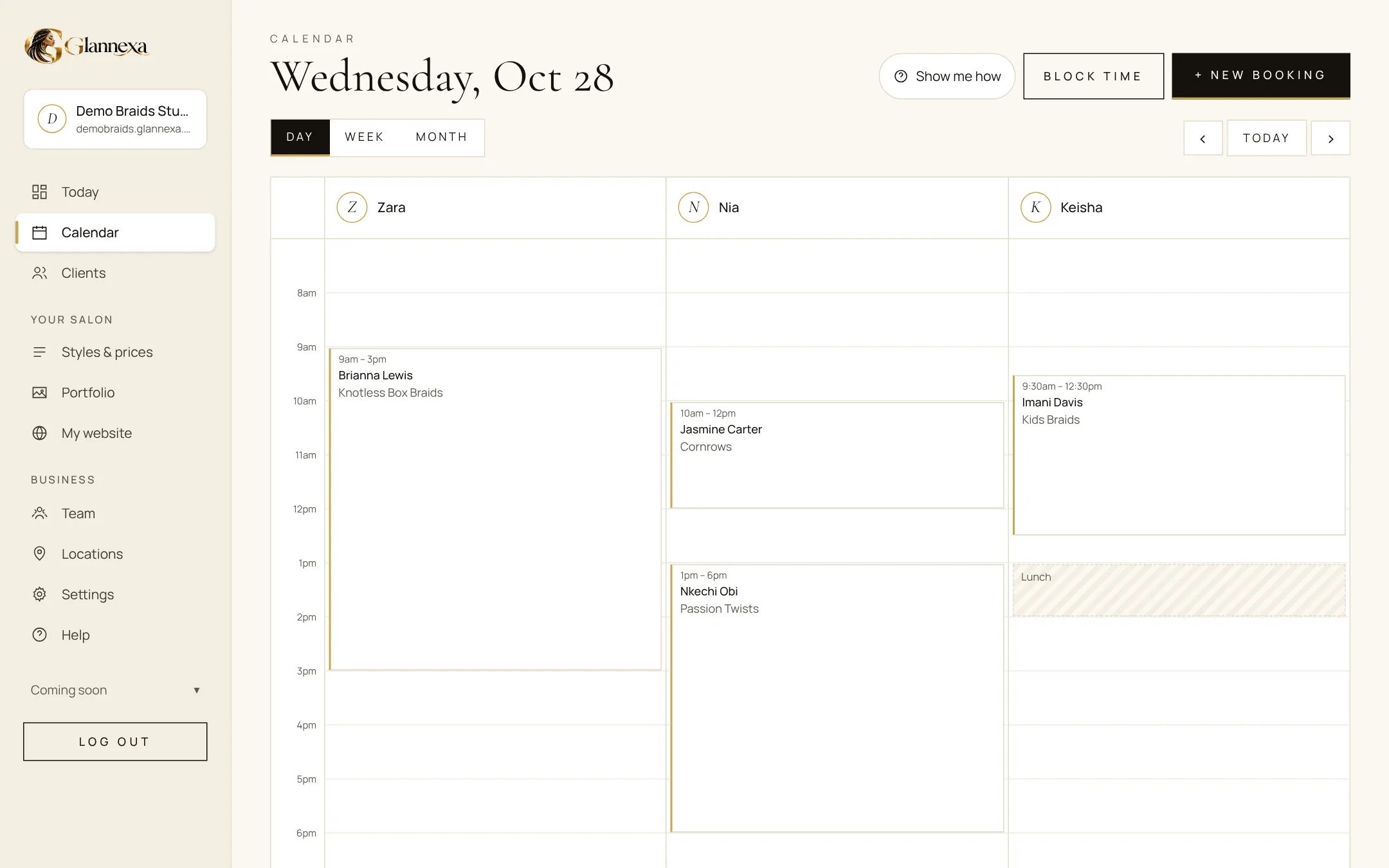
Add a booking by hand
Book a client who called, texted or walked in, in four short steps: style, time, client, confirm.
9 steps · Start ›
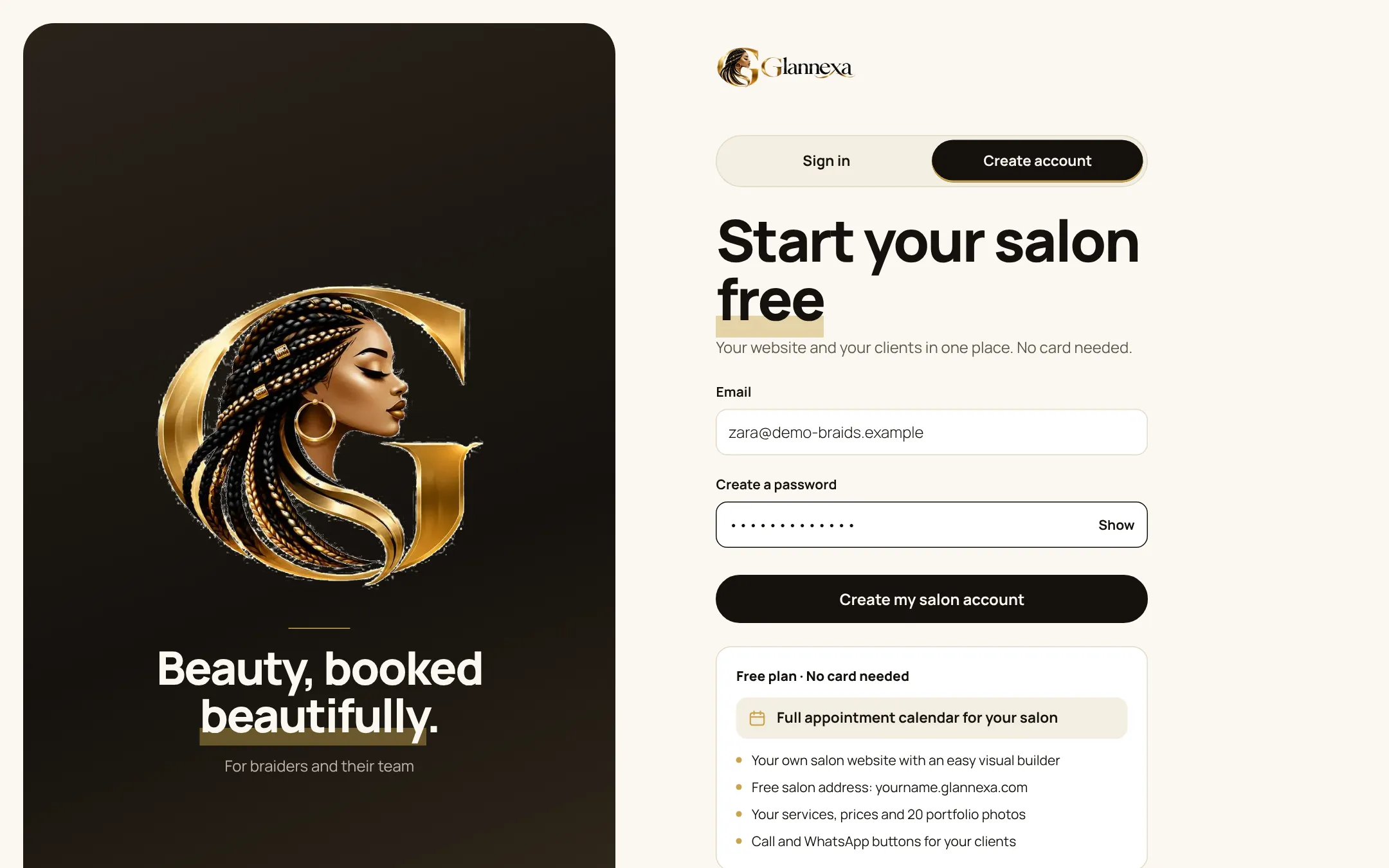
Create your website
Sign up free, add your details, location, hours and styles, and publish your booking website.
8 steps · Start ›
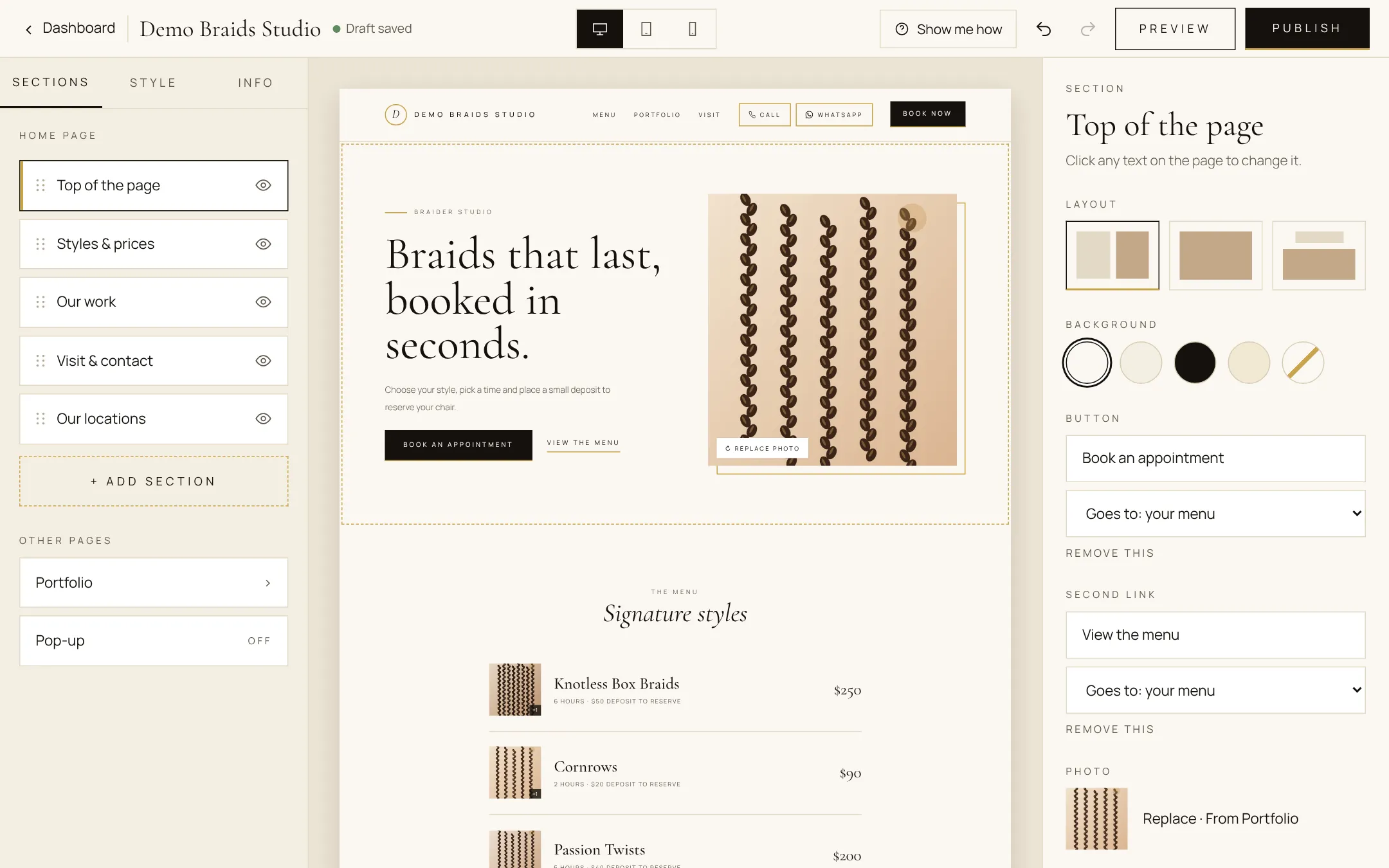
Edit your website
Change any text, swap photos, show, hide or add sections, and pick your colors and fonts.
8 steps · Start ›
Publish your website changes
See your website on a phone or computer, preview it, then publish so clients see your changes.
6 steps · Start ›
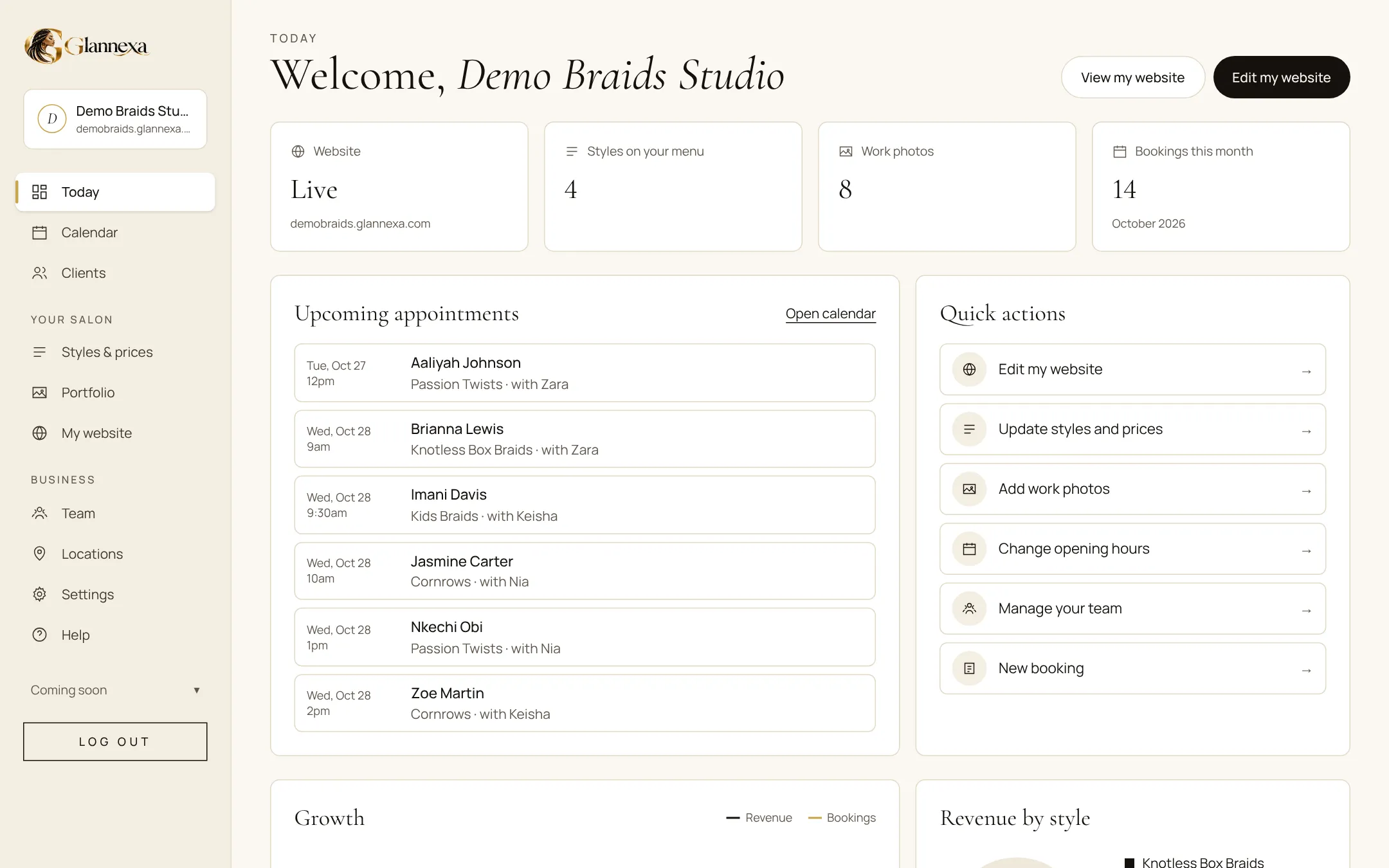
Update your styles and prices
Change prices, times and deposits, add a new style, add photos, or remove a style.
6 steps · Start ›
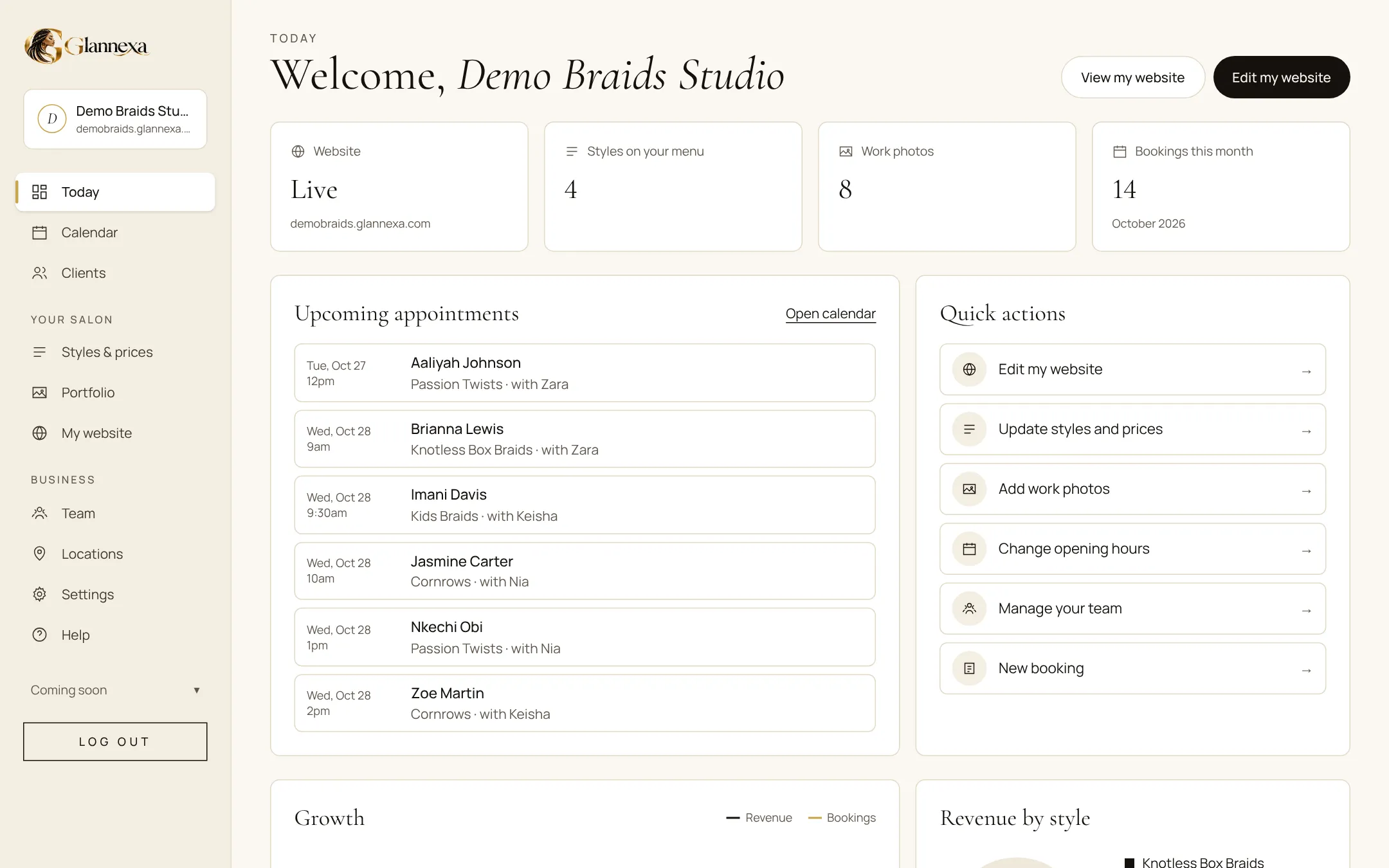
Use your calendar
See your day, week or month, open a booking to change or cancel it, and block time off.
6 steps · Start ›
Common questions
How do I add a booking for a client who called me?
Open your Calendar and tap + New booking. Choose the style, who and when, then the client, and confirm.
Show me how ›Why can't I see any free times?
That person is already booked, blocked or not working that day. Pick someone else or another day.
Show me how ›Can two clients be booked at the same time?
Not with the same person. Only free times are shown, so a person can't be double-booked.
Show me how ›How do I find a client who came before?
On the Client step, type a few letters of their name or phone number and tap them.
Show me how ›Do I need the client's phone number?
No, only their name. A phone number lets you text or WhatsApp them later.
Show me how ›I picked the wrong time. Can I fix it before booking?
Yes. On Check and confirm, tap Change next to the time, pick another one, and continue.
Show me how ›How do I book a regular client again?
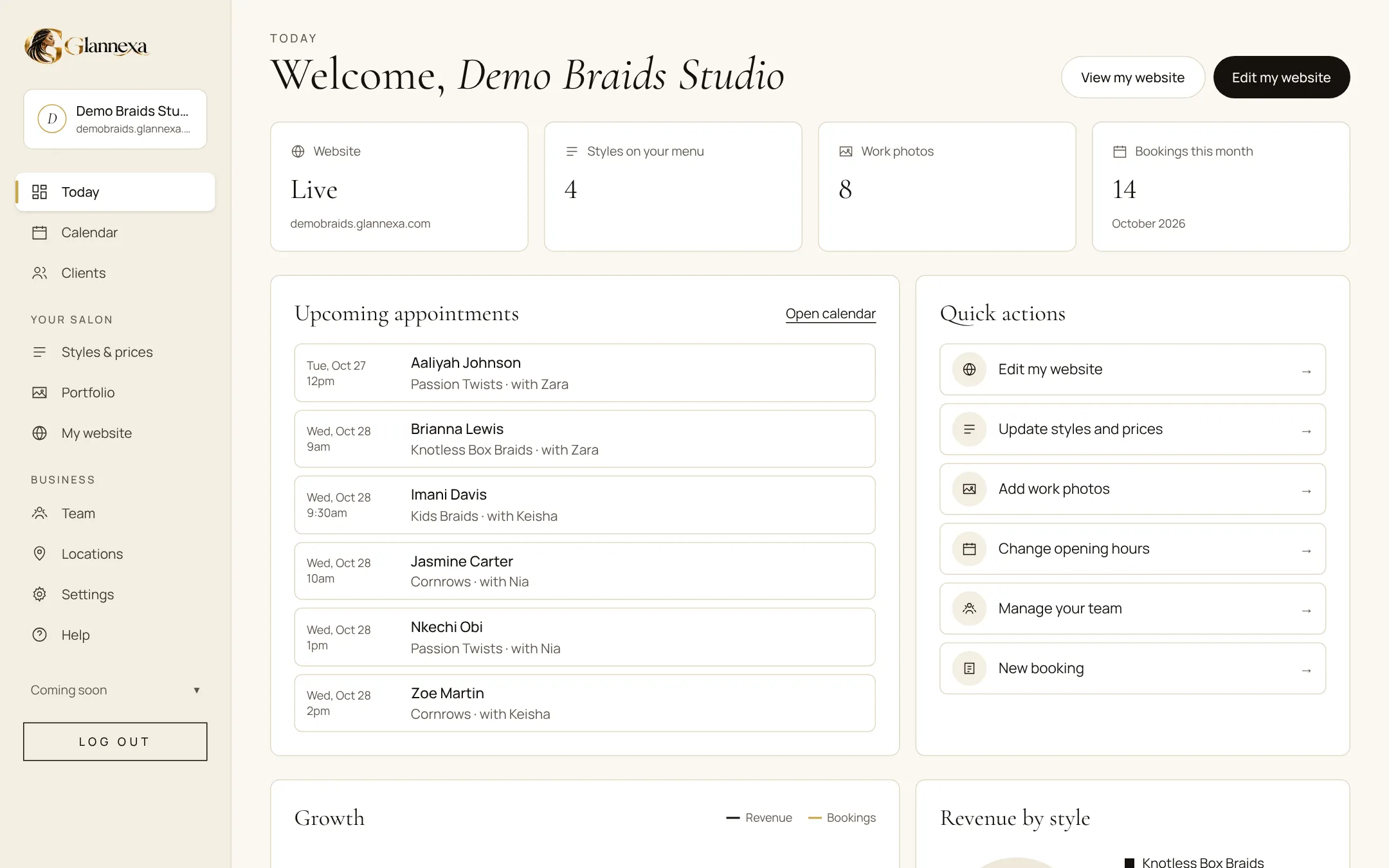
Open Clients, search for them and tap Book again. Their name and phone fill in for you.
Show me how ›Where do I see all my clients?
Tap Clients in the menu. You see each client's visits, their last style and their next booking.
Show me how ›How do I change or move a booking?
Tap the booking on your calendar, change the day, time or details, and tap Save.
Show me how ›How do I cancel a booking?
Tap the booking on your calendar, then Cancel booking at the bottom, and confirm. The time becomes free again.
Show me how ›How do I take a day off or a lunch break?
On your calendar, tap Block time, choose who and when, and tap Block this time. Nobody can be booked then.
Show me how ›Can I close the whole salon for a day?
Yes. In Block time, choose Whole salon under Who.
Show me how ›How do I see my week or month?
On your calendar, tap Week or Month at the top.
Show me how ›How do I see the next person's column on my phone?
Swipe sideways on the calendar.
Show me how ›Is it free to create my website?
Yes. Creating your account and your website is free, and no card is needed.
Show me how ›What will my web address be?
You choose it when you create your business: yourname.glannexa.com.
Show me how ›How do I add my cover photo or logo?
In your details, tap the cover photo or logo box and choose a picture.
Show me how ›What if I travel to my clients?
In Location, choose I travel to clients and add the city or area you serve.
Show me how ›How do I change my opening hours?
Switch each day on or off and set its times. Clients can only book inside these hours.
Show me how ›How do I change the text on my website?
Open the editor, tap any text on your website and type.
Show me how ›How do I change a photo on my website?
In the editor, tap Replace photo on the picture.
Show me how ›How do I hide a part of my website?
In the editor's Sections list, tap the eye next to that section.
Show me how ›How do I change my website's colors or fonts?
In the editor, open the Style tab and pick colors and fonts.
Show me how ›Are my changes saved?
Yes, the editor saves as you go and shows Draft saved. Visitors see them after you publish.
Show me how ›Why don't clients see my changes?
Changes stay in your draft until you tap Publish in the editor.
Show me how ›How do I see my website on a phone?
In the editor, tap the phone button at the top, or Preview to open it in a new tab.
Show me how ›How do I change my prices?
Tap Styles & prices in the menu, change the price, and tap Save.
Show me how ›How do I change how long a style takes?
In Styles & prices, change the time next to the style and tap Save.
Show me how ›How do I set a deposit?
In Styles & prices, type the deposit next to each style and tap Save.
Show me how ›How do I add a new style?
Fill in the empty row at the bottom of Styles & prices and tap + Save and add another.
Show me how ›How do I remove a style I don't offer anymore?
Tick Remove next to it and tap Save.
Show me how ›How do I cancel my plan?
Open Plan & billing in your dashboard, tap Manage subscription, and cancel. You keep your plan until the end of the month you paid for, then your salon moves to Free. Your website, photos, bookings, clients and team are never deleted.
Do you give refunds?
Payments are not refunded. If you cancel, your plan stays until the end of the month you paid for. If you think you were charged by mistake, write to support@afriquetoday.com.
How do I change my card or see my invoices?
Open Plan & billing and tap Manage subscription. Only the salon owner can see this page.
Who can I contact for help?
Write to support@afriquetoday.com, or book a free call from the Help Center.
Still stuck?
Email support@afriquetoday.com, or book a free call and we'll walk you through it.